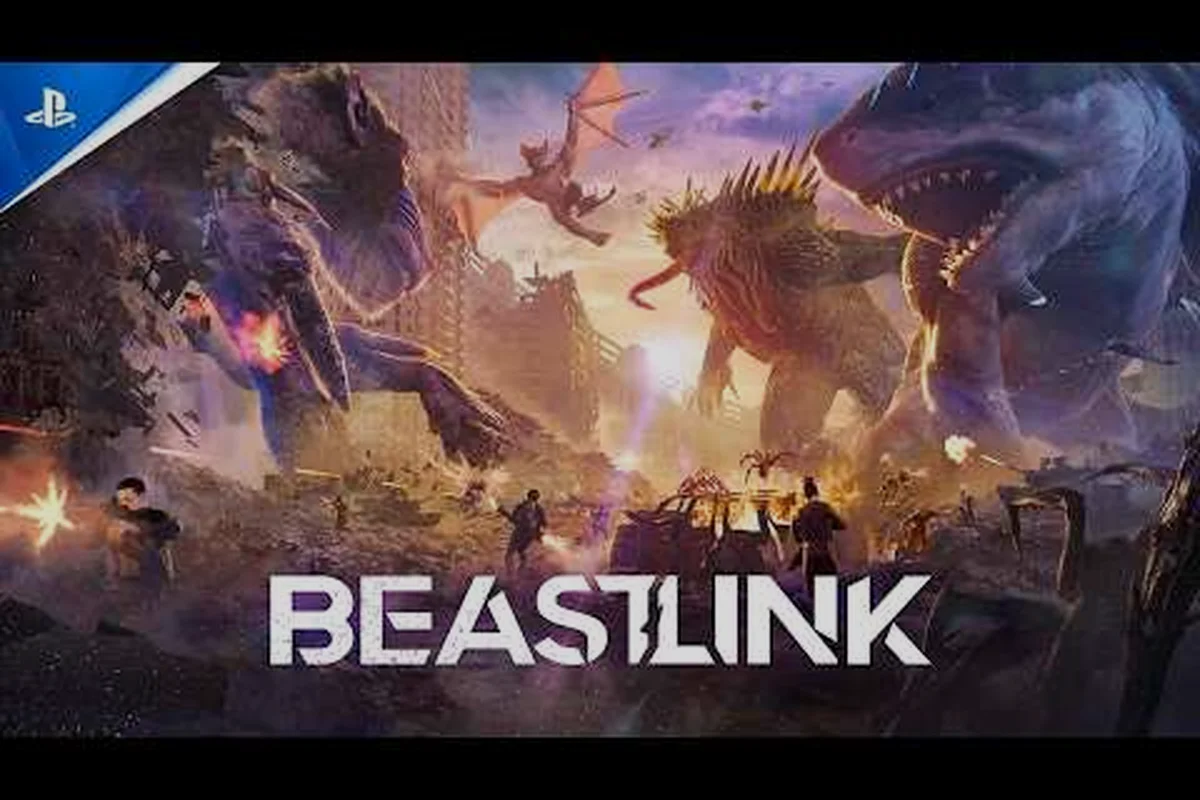
Wondering whether your favorite gamepad works with BeastLink before you drop into a city-destroying Kaiju match? The good news is that BeastLink controller support covers most modern pads out of the box, including Xbox, PlayStation, and Steam Deck controllers, so you can start Linking with dormant Beasts without wrestling with third-party mapping tools. This matters because the game's 32-player multiplayer chaos demands precise, comfortable input, and a gamepad often delivers that better than a keyboard for many players. Get the full compatibility breakdown, setup steps, and performance notes below.
BeastLink Controller Support Overview
BeastLink, available on Steam, is a giant multiplayer Kaiju experience where humans, vehicles, and colossal Beasts collide in fully destructible cities. The core loop involves earning serum, Linking with dormant Kaiju, and unleashing devastating powers like SuperDestruction, which collapses buildings and reduces entire city blocks to dust. Because the action moves fast and the camera swings wildly during a Beast rampage, having reliable gamepad input makes a real difference.
Here is what you need to know about BeastLink controller support right now:
-
Full controller support is listed on the official Steam store page, meaning you can navigate menus, customize loadouts, and play matches entirely with a gamepad.
-
Xbox controllers (both Xbox One and Xbox Series X|S) work natively through Steam Input with zero extra configuration.
-
PlayStation controllers (DualShock 4 and DualSense) are recognized through Steam Input, though you may need to enable PlayStation Configuration Support in Steam settings.
-
Steam Deck runs BeastLink through Proton, and the built-in controls map automatically to the game's action layout.
-
Third-party pads that present themselves as Xbox controllers typically work without issue, while generic DirectInput pads may require Steam Input emulation.
The game's official website describes the experience as "Control the monsters. Survive the city. Uncover the truth," which gives you a sense of how central the Link mechanic is to the fantasy. Since you spend most of your time steering a colossal creature through collapsing urban environments, the right controller setup directly impacts how responsive your Beast feels during critical moments.
Xbox Series X Controller Compatibility
The Xbox Series X controller is the most straightforward option for BeastLink controller support, and it is the pad most PC players reach for first. Microsoft's controller uses the XInput protocol natively, which Steam recognizes instantly, so you can plug it in via USB or connect over Bluetooth and start playing immediately.
| Feature | Xbox Series X Controller | Xbox One Controller | Third-Party XInput Pad |
|---|---|---|---|
| Wired USB Connection | Yes, plug and play | Yes, plug and play | Yes, most models |
| Bluetooth Connection | Yes, native support | Yes, native support | Varies by model |
| Steam Input Overlay | Works automatically | Works automatically | Requires enabling |
| Vibration Feedback | Full support | Full support | Partial support |
| Extra Paddle Buttons | Not on standard pad | Not on standard pad | Configurable via Steam |
One thing to note is that the Xbox Series X controller uses USB-C for wired connections, while the older Xbox One controller uses micro-USB. If you are buying a cable specifically for BeastLink, make sure it matches your controller's port. Bluetooth pairing is straightforward: hold the sync button on the top of the controller, then select it from your PC's Bluetooth settings. Steam will pick it up as an Xbox controller and apply the correct button prompts in-game.
For players who also own an Xbox Series X console, the same controller carries over to PC without any additional setup. This makes the Xbox pad the most flexible choice if you split your time between console and PC sessions. According to community reports, the Xbox Series X controller maintains a stable connection even during intense 32-player matches, which is something wireless pads with weaker antennas sometimes struggle with.
PlayStation Controller Setup
PlayStation controllers require a bit more attention than Xbox pads, but BeastLink controller support handles them well once you configure Steam correctly. Both the DualShock 4 and the DualSense work through Steam Input, which translates the PlayStation button layout to the game's expected inputs. According to BeastLink on Steam, the controller’s firmware update process is managed directly through its companion app, which also handles button mapping and sensitivity calibration.
DualSense Setup Steps
The DualSense controller offers advanced features like haptic feedback and adaptive triggers, though these only work fully in games that explicitly support them. BeastLink does not currently implement these features, according to the official Steam page, so the DualSense functions as a standard gamepad in most respects.
To get your DualSense working with BeastLink:
-
Open Steam and navigate to Settings > Controller > General Controller Settings.
-
Check the box for PlayStation Configuration Support.
-
Connect your DualSense via USB-C or Bluetooth.
-
Launch BeastLink and verify the button prompts match the PlayStation layout.
-
If prompts show Xbox buttons, restart the game and check the Steam Input settings again.
DualShock 4 Considerations
The DualShock 4 follows the same setup path, but there is one extra consideration: older DualShock 4 models use micro-USB, and the Bluetooth connection can occasionally drop if the controller's battery is low. Community testing suggests keeping the pad wired during long sessions is the more reliable option, especially when you are in the middle of a Beast rampage and need every input to register.
| Setting | DualSense | DualShock 4 |
|---|---|---|
| PlayStation Configuration Support | Required | Required |
| USB Connection | USB-C | Micro-USB |
| Bluetooth Stability | Good | Moderate, battery dependent |
| Touchpad in Steam | Works as mouse | Works as mouse |
| Gyro Aiming | Available via Steam Input | Available via Steam Input |
One useful trick reported by players is mapping the touchpad to a quick emote or ping button through Steam Input, since the touchpad often goes unused in BeastLink. This gives you an extra bind without sacrificing any of the standard face buttons, which can be handy when coordinating with your squad during a city-wide collapse.
Steam Deck and Handheld Play
Steam Deck owners will be happy to know that BeastLink controller support extends to Valve's handheld, and the game runs through Proton with the built-in controls mapping automatically. The Deck's layout includes the standard face buttons, dual trackpads, and back paddles, all of which Steam Input assigns to sensible defaults when you first launch the game.
The Steam Deck experience is worth calling out specifically because the handheld's controls give you options that a standard gamepad does not. You can bind the trackpads to camera movement for precise aiming during ranged Beast attacks, or use the back paddles for abilities that you want to trigger without moving your thumbs off the sticks. The gyro sensor also works, which some players use for fine-tuning their aim while targeting specific buildings or enemy Beasts.
Performance on the Deck is a separate question from input, and it is worth checking the BeastLink 1440p performance guide if you are planning to dock the Deck to a larger display. The handheld itself targets 30-60 FPS depending on your graphics settings, and the controller input remains responsive even when the framerate dips during heavy destruction sequences.
For players who prefer the Deck's trackpads over traditional sticks, Steam Input lets you customize the response curve to your liking. This is a level of control that console players do not have, and it is one of the reasons the Deck is a popular choice for BeastLink sessions on the go.
System Requirements and Performance
Understanding BeastLink controller support also means knowing what hardware you need to run the game smoothly, because input lag becomes noticeable when your system struggles to maintain framerate. The official Steam page lists the minimum and recommended specifications, and community testing has confirmed that the game scales well across a range of hardware.
| Component | Minimum Requirement | Recommended Requirement |
|---|---|---|
| CPU | Quad-core Intel or AMD | Six-core or better |
| GPU | GTX 1060 or equivalent | RTX 2060 or better |
| RAM | 8 GB | 16 GB |
| Storage | SSD required | NVMe SSD recommended |
| DirectX | Version 11 | Version 12 |
The beastlink ram requirement sits at 8 GB minimum, but 16 GB is the safer bet for 32-player matches where the game loads multiple Beasts, vehicles, and destructible structures simultaneously. Players who run with 8 GB report occasional stutter when the action gets dense, which can translate to missed inputs on your controller. If you are planning to stream or record gameplay, bumping to 32 GB gives you headroom for background applications.
The beastlink gpu requirements are modest by modern standards, with a GTX 1060 handling the minimum preset at 1080p. However, the game's SuperDestruction mechanic, which collapses entire city blocks, is visually demanding, and the recommended RTX 2060 delivers a much smoother experience. According to community data, players on the minimum GPU should expect 30-45 FPS in busy matches, while the recommended tier holds 60 FPS more consistently.
File Size and Download Considerations
The beastlink file size is another factor to plan for before you install, especially if you are on a metered connection or have limited SSD space. The current Early Access build requires roughly 25 GB of free storage, and the developers have confirmed that future updates will add more content, which means the install size will grow over time.
| Storage Type | Download Size | Installed Size | Notes |
|---|---|---|---|
| HDD | 25 GB | 25 GB | Not recommended, long load times |
| SATA SSD | 25 GB | 25 GB | Playable, moderate load times |
| NVMe SSD | 25 GB | 25 GB | Best experience, fast loading |
The beastlink download size is the same as the installed size because the game does not use compressed archives that expand during installation. This is convenient for planning your bandwidth, but it also means you need the full 25 GB available before you start the download. The official Steam page lists an SSD as a requirement, and community reports confirm that HDD users experience noticeably longer loading screens when entering matches.
For players upgrading their storage specifically for BeastLink, an NVMe drive is the best investment because the game loads large city maps with hundreds of destructible objects. The difference between a SATA SSD and an NVMe drive is most noticeable when you first drop into a match, with NVMe shaving several seconds off the initial load.
Controller Settings and Optimization
Once your controller is connected and recognized, you can fine-tune the experience through Steam Input and the in-game settings menu. BeastLink controller support includes a dedicated settings screen where you can adjust stick sensitivity, vibration strength, and button mapping, though the options are not as deep as some dedicated fighting games.
Here are the key settings to adjust for the best gamepad experience:
-
Stick Sensitivity: Start with the default and adjust upward if you find your Beast turning too slowly during chases.
-
Vibration Strength: Set to medium if you want feedback without the constant rumbling during destruction sequences.
-
Button Mapping: Remap abilities to triggers or bumpers if you prefer not to move your thumbs off the sticks.
-
Dead Zone: Lower the dead zone if you notice stick drift or want more precise camera control.
-
Steam Input Overlay: Disable this if you want the game's native button prompts instead of Steam's overlay.
The dead zone setting is worth particular attention because it directly affects how responsive your camera feels. A high dead zone means small stick movements do nothing, which can make aiming feel sluggish. Community testing suggests lowering the dead zone to around 10% for a good balance between precision and avoiding drift. For players who want to see the full range of button prompts and input options, the DualSense support guide covers PlayStation-specific configuration in more detail, including how to get the most out of the touchpad and gyro features.
Steam Input Customization
Steam Input is the backbone of BeastLink controller support on PC, and it gives you access to advanced customization that goes beyond the in-game menu. You can create per-game profiles, bind keyboard keys to controller buttons, and even set up action layers that change your bindings depending on context.
| Steam Input Feature | What It Does | Best Use Case |
|---|---|---|
| Action Sets | Switch bindings based on context | Separate bindings for on-foot vs. Beast mode |
| Action Layers | Override specific buttons temporarily | Hold-to-modify ability bindings |
| Gyro Aiming | Use motion controls for camera | Fine-tune ranged attacks |
| Trackpad Menu | Radial menu on touchpad | Quick ability selection |
| Rapid Fire | Trigger repeated inputs | Auto-spam basic attacks |
The action sets feature is particularly useful for BeastLink because the game has two distinct control contexts: human on-foot gameplay and Beast mode. You can create one action set for each context, with different stick sensitivities and button layouts, and Steam Input will switch between them automatically when the game changes context. This is a level of customization that console versions do not offer, and it is one of the strongest reasons to play on PC with a gamepad.
Frequently Asked Questions
Does BeastLink have full controller support on PC?
Yes, BeastLink controller support is listed as full on the official Steam page, which means you can use a gamepad for menus, loadouts, and gameplay without any workarounds. Xbox controllers work natively, while PlayStation pads require enabling PlayStation Configuration Support in Steam settings.
Can I use an Xbox Series X controller with BeastLink?
Absolutely, the Xbox Series X controller works plug-and-play with BeastLink over USB or Bluetooth. It uses the XInput protocol that Steam recognizes instantly, so you can start playing immediately without configuring anything. The button prompts will display Xbox icons automatically.
Does BeastLink support the Steam Deck?
Yes, the Steam Deck runs BeastLink through Proton, and the built-in controls map automatically. You can customize the trackpads, back paddles, and gyro through Steam Input for a tailored experience. Performance varies by settings, but the game is playable on the handheld.
What are the minimum PC requirements for BeastLink?
The minimum requirements include a quad-core CPU, GTX 1060 GPU, 8 GB RAM, and an SSD with 25 GB of free space. The recommended specs are a six-core CPU, RTX 2060 GPU, and 16 GB RAM for smoother performance in 32-player matches.
Is the BeastLink download size large?
The BeastLink download is roughly 25 GB, matching the installed size since there’s no compression. Ensure that much free space exists beforehand, and an SSD is strongly advised for faster loads. No separate install overhead, so what you download is what you play.