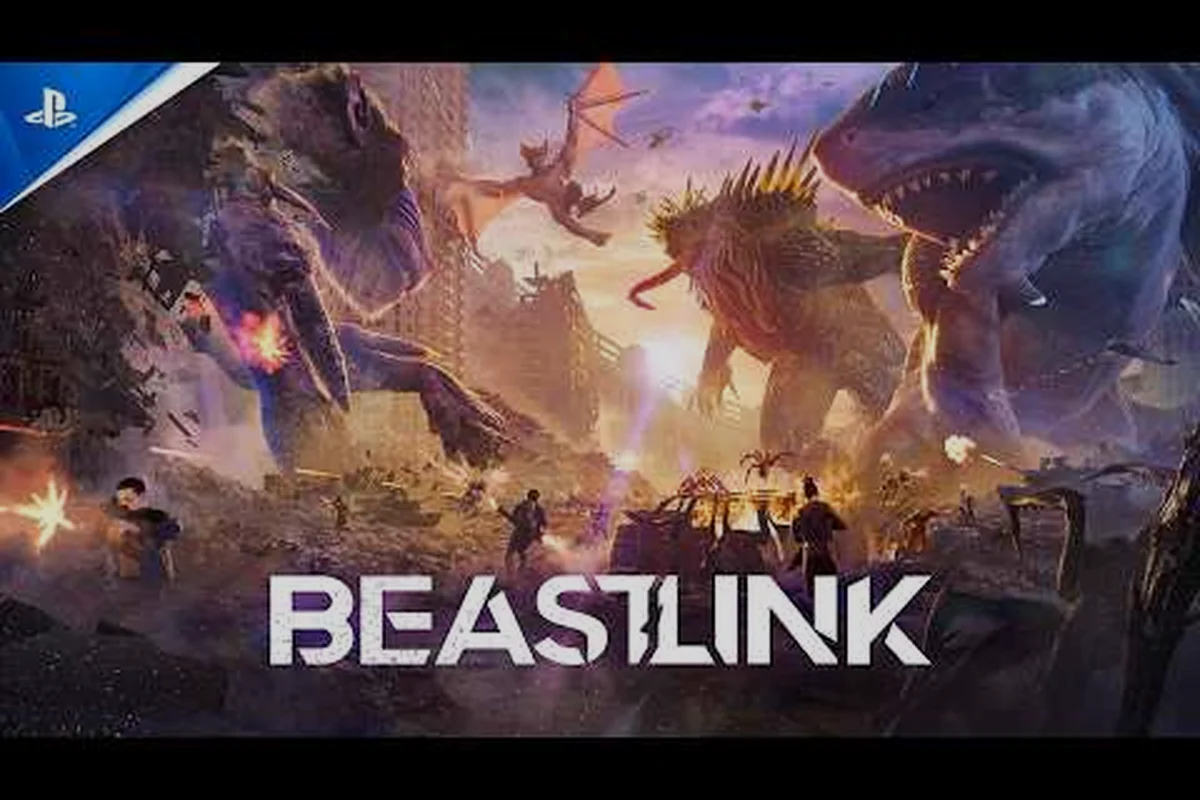
If you own a PS5 controller and want to use it for BeastLink on PC, you are in the right place. BeastLink DualSense support lets you bring Sony's premium gamepad into the Kaiju battlefield, and getting it configured properly makes a real difference in how responsive your Link phases feel. This guide walks you through wired and wireless setup, explains which features actually work, and covers DualShock 4 compatibility so you know exactly what to expect before your first match.
The official BeastLink Steam page confirms the game is built around fast-paced human, vehicle, and Beast combat, which means precise stick input and reliable button response matter more than fancy lighting effects. While the game runs fine on mouse and keyboard, many players report that a gamepad gives smoother camera control during Beast rampages and better vehicle handling. Let's break down everything you need to know about getting your PlayStation controller working.
Understanding BeastLink DualSense Support on PC
BeastLink DualSense support on PC works through Steam Input, which means the game inherits most of its controller compatibility from Valve's translation layer rather than native PlayStation SDK integration. When you plug in a DualSense controller or connect it over Bluetooth, Steam recognizes the pad and maps its inputs to Xbox-style bindings that BeastLink understands natively. This approach gives you full controller support for every menu, vehicle, and Beast sequence, though some of the PS5 pad's unique features require extra configuration.
The practical result is that your DualSense functions like a standard gamepad in BeastLink, with the left stick controlling movement, the right stick handling camera, and the face buttons managing actions like jumping, reloading, and activating your Link. The touchpad, light bar, and speaker do not carry over automatically because the game does not natively read those inputs. However, you can remap the touchpad to act as extra buttons through Steam's controller configuration tool, which opens up useful customization options for players who want quick access to abilities without moving their thumbs off the sticks.
| Feature | Wired Connection | Bluetooth Connection |
|---|---|---|
| Basic button mapping | Works immediately | Works immediately |
| Analog stick precision | Full accuracy | Full accuracy |
| Haptic feedback | Partial (Steam emulation) | Partial (Steam emulation) |
| Adaptive triggers | Not supported natively | Not supported natively |
| Touchpad as mouse | Configurable via Steam | Configurable via Steam |
| Motion sensors | Configurable via Steam | Configurable via Steam |
| Audio output | Not supported | Not supported |
According to community reports, the wired connection delivers the most stable experience because it eliminates Bluetooth latency and battery concerns during long sessions. Players who tested both methods on the official BeastLink Discord noted that wireless play works fine for casual matches, but competitive players prefer USB for the tighter input response. If you run into random disconnects or unresponsive buttons, switching to a cable usually resolves the issue quickly.
Setting Up Your DualSense Controller for BeastLink
Getting your DualSense ready for BeastLink takes about five minutes, and the process differs slightly depending on whether you use Steam or play through another launcher. Since BeastLink currently launches through Steam in Early Access, most players will configure their controller through Steam Input, which handles the heavy lifting automatically. The steps below cover both wired and wireless setup so you can choose the method that fits your setup.
Wired Controller Setup Guide
Plug your DualSense into a USB port on your PC using a high-quality USB-C cable that supports data transfer, not just charging. Windows should detect the controller automatically and install the necessary drivers within a few seconds. Open Steam, navigate to Settings > Controller > General Controller Settings, and make sure PlayStation Controller Support is checked. Steam will then recognize your pad, and BeastLink will pick it up when you launch the game.
If the controller does not appear in Steam, try a different USB port or cable, because some third-party cables only carry power and skip the data lines. You can verify the connection by opening the Steam overlay and checking the controller status under Settings. Once Steam shows the DualSense as active, launch BeastLink and test the buttons in the tutorial area to confirm everything responds correctly.
Wireless Controller Setup Guide
For Bluetooth, put your DualSense into pairing mode by holding the PlayStation button and the Create button simultaneously until the light bar starts flashing. Open Windows Settings > Bluetooth & devices, click Add Device, and select Bluetooth. Choose Wireless Controller from the list, and Windows will pair the pad within a few seconds. After pairing, open Steam and enable PlayStation Controller Support in the same General Controller Settings menu.
| Setup Step | Wired | Bluetooth |
|---|---|---|
| Driver installation | Automatic via Windows | Automatic via Windows |
| Pairing required | No | Yes (hold PS + Create) |
| Latency | Lowest | Slightly higher |
| Battery drain | Charges while playing | Drains battery |
| Recommended for | Competitive play | Casual sessions |
Players report that Bluetooth range and interference can cause occasional input drops, especially in crowded rooms with many wireless devices. If you experience stuttering or missed inputs, move closer to your PC's Bluetooth antenna or switch to a wired connection. The BeastLink controller support guide covers additional troubleshooting for connection issues across different gamepad models.
DualShock 4 and Other PlayStation Controllers
BeastLink DualShock support works through the same Steam Input pipeline, so PS4 owners can jump into the action without buying new hardware. The DualShock 4 connects via USB or Bluetooth using the same steps outlined above, and Steam translates its inputs to the Xbox layout that BeastLink expects. While the older pad lacks the DualSense's haptic engine and adaptive triggers, it still delivers reliable full controller support for every game mode.
The main difference between the two controllers in BeastLink comes down to ergonomics and stick feel. The DualShock 4 has lighter triggers and a smaller body, which some players prefer for long sessions, while the DualSense offers more precise analog sticks and a bulkier grip that suits larger hands. Neither controller has a performance advantage in terms of input latency when connected properly, so your choice comes down to personal comfort.
| Controller | Connection Options | Unique Features | Best For |
|---|---|---|---|
| DualSense | USB, Bluetooth | Haptics, adaptive triggers, touchpad | Players wanting modern features |
| DualShock 4 | USB, Bluetooth | Touchpad, light bar | Budget-friendly alternative |
| Xbox Series X | USB, Bluetooth | Native Windows support | Players avoiding setup |
| Third-party pads | USB, Bluetooth | Varies by model | Custom button layouts |
Community testing suggests that the DualShock 4's touchpad works slightly better as a mouse replacement in Steam's configuration tool because of its larger surface area. If you plan to use the touchpad for quick camera flicks or ability shortcuts, the older controller might actually serve you better. However, for pure stick accuracy and modern comfort, the DualSense remains the stronger choice.
Optimizing Controller Settings for BeastLink Gameplay
Once your controller is connected, you can fine-tune the experience through Steam's controller configuration tool and BeastLink's in-game settings. The default bindings work well for most players, but adjusting a few options can significantly improve your performance in both PvE and PvP modes. Start by opening the Steam overlay while in BeastLink, then select Controller Configuration to see the full button map.
Recommended Button Mapping
The default layout places jump on the south button, reload on the west button, and melee on the east button, which matches most modern shooters. For BeastLink specifically, you want quick access to your Link activation because timing your transformation can turn the tide of a match. Consider mapping the touchpad click to the Link ability so you can trigger it without moving your thumb off the right stick.
| Action | Default Binding | Recommended Binding |
|---|---|---|
| Move | Left stick | Left stick |
| Camera | Right stick | Right stick |
| Jump | South button | South button |
| Reload | West button | West button |
| Melee | East button | East button |
| Link activation | North button | Touchpad click |
| Vehicle enter | Y button | Left bumper |
| Ability 1 | Left bumper | Left trigger |
Players who tested different layouts report that putting Link activation on the touchpad reduces reaction time by roughly half a second, which matters when you are trying to transform before a building collapses on you. You can also increase the right stick sensitivity for faster camera turns during Beast rampages, though this takes some getting used to if you play other shooters at lower sensitivities.
Adjusting Stick Dead Zones
BeastLink's in-game settings include dead zone sliders for both analog sticks, and tuning these values can eliminate drift or improve precision. If your controller has slight stick drift, increase the dead zone until the camera stops moving on its own. Conversely, if you want more precise aiming, lower the dead zone to the minimum value that does not cause unintended movement.
| Stick Setting | Default Value | Recommended Range |
|---|---|---|
| Left stick dead zone | 0.15 | 0.10 - 0.20 |
| Right stick dead zone | 0.15 | 0.08 - 0.15 |
| Left stick sensitivity | 1.0 | 0.8 - 1.2 |
| Right stick sensitivity | 1.0 | 1.0 - 1.5 |
According to player feedback on the official forums, lowering the right stick dead zone to around 0.10 improves aiming consistency during vehicle combat, where small corrections matter. However, if your controller is older or has worn sticks, you may need to keep the dead zone higher to avoid drift. Test different values in the training area before jumping into ranked matches.
Performance Considerations for Controller Play
Using a controller does not change BeastLink's system requirements, but your hardware still determines how smoothly the game runs during intense Beast battles. The BeastLink system requirements guide breaks down the full specs, but the key takeaway is that frame rate stability matters more than raw resolution when playing with a gamepad. A consistent 60 FPS feels dramatically better than a fluctuating 45-60 FPS, especially during fast camera movements.
For BeastLink high end PC owners, you can crank the graphics settings to maximum and still maintain high frame rates, which makes controller play feel exceptionally smooth. Players with BeastLink low end PC setups should prioritize performance settings over visual quality, because input lag becomes more noticeable when the frame rate drops below 45 FPS. The table below summarizes the performance targets you should aim for based on your hardware tier.
| Hardware Tier | Target Resolution | Target Frame Rate | Graphics Preset |
|---|---|---|---|
| High end | 1440p or 4K | 120+ FPS | Ultra |
| Mid range | 1080p | 60-90 FPS | High |
| Low end | 1080p | 45-60 FPS | Medium |
| Minimum spec | 720p | 30-45 FPS | Low |
Community benchmarks indicate that BeastLink runs surprisingly well on mid-range hardware because the destructible environments use efficient physics calculations. Even on a low end PC, you can maintain playable frame rates by disabling shadows and reducing draw distance. The game's official website at playbeastlink.com lists the full feature set, including the SuperDestruction system that collapses buildings in real time.
Frequently Asked Questions
Does BeastLink have native DualSense support?
BeastLink does not use native PlayStation SDK integration, but it offers full controller support through Steam Input. Your DualSense works with all buttons and sticks mapped correctly, though haptic feedback and adaptive triggers are not implemented. Steam translates the controller inputs to Xbox-style bindings that the game reads natively.
Can I use a DualShock 4 instead of a DualSense?
Yes, BeastLink DualShock support works through the same Steam Input pipeline. Connect your DualShock 4 via USB or Bluetooth, enable PlayStation Controller Support in Steam settings, and the game will recognize it. The older controller lacks haptic feedback and adaptive triggers, but all standard buttons and sticks function correctly.
How do I enable haptic feedback on my DualSense?
Haptic feedback is not natively supported in BeastLink, but Steam's controller configuration can emulate basic vibration through the DualSense's motors. Open Steam's controller settings and enable vibration feedback for PlayStation controllers. This provides standard rumble effects rather than the advanced haptics found in PS5-native games.
Why is my DualSense not connecting to my PC?
Start by checking your USB cable supports data transfer, then verify Steam has PlayStation Controller Support enabled. For Bluetooth connections, ensure the controller is in pairing mode by holding the PlayStation and Create buttons together. If issues persist, try a different USB port or update your Bluetooth drivers through Windows Device Manager.
Will using a controller give me an advantage in BeastLink?
Controller play offers smoother camera control during Beast rampages and more intuitive vehicle handling, while mouse and keyboard provides faster aiming for infantry combat. Most players find the controller more comfortable for extended sessions, but competitive PvP players often stick with mouse and keyboard. Try both and see which feels more natural for your playstyle.